Mobile application (PWA)
Note
This add-on is available starting with CS-Cart Store Builder Ultimate and Multi-Vendor Plus.
Starting with version 4.20.1, a new add-on is introduced, which allows you to configure a progressive web application for each of your storefronts.
A progressive web application (PWA), in fact, is a website that looks, feels and works like a mobile application: it has a home screen icon, shows badges and supports shortcuts. You don’t need to publish a PWA in an app store (though, you can do it, if you wish), and your customers only need a browser to use it. Other advantages include:
- easy configuration and launch: you only need to install an add-on and set a few options;
- a storefront for your customers looks almost like a website storefront; moreover, you can configure a PWA for multiple storefronts;
- support of any add-ons (including third-party add-ons);
- SEO friendly and easily found by search engines;
- lightweight and traffic-saving.
For your CS-Cart store, you can also install a native mobile application, which provides deeper integration with the system of the device: it can use all its functions, and is distributed through app stores. The choice of application (PWA or native) depends on your goals:
- Choose PWA if you need a lightweight application that can be easily developed and launched in a few clicks.
- Choose a native application if you need full integration with the device where it is installed.
Note
CS-Cart also supports installation of a native mobile application
Configuring PWA in Admin panel
Install the Mobile application (PWA) add-on.
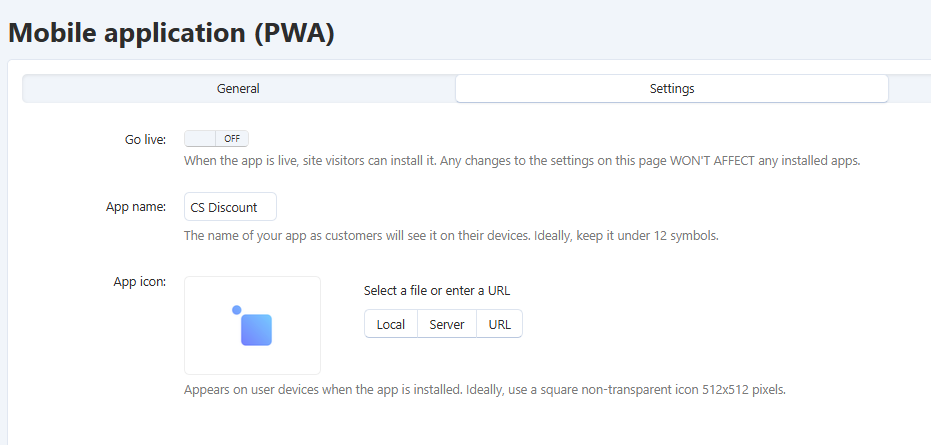
In the add-on menu, go to the Settings tab. Here you can set a name and an icon for your PWA:
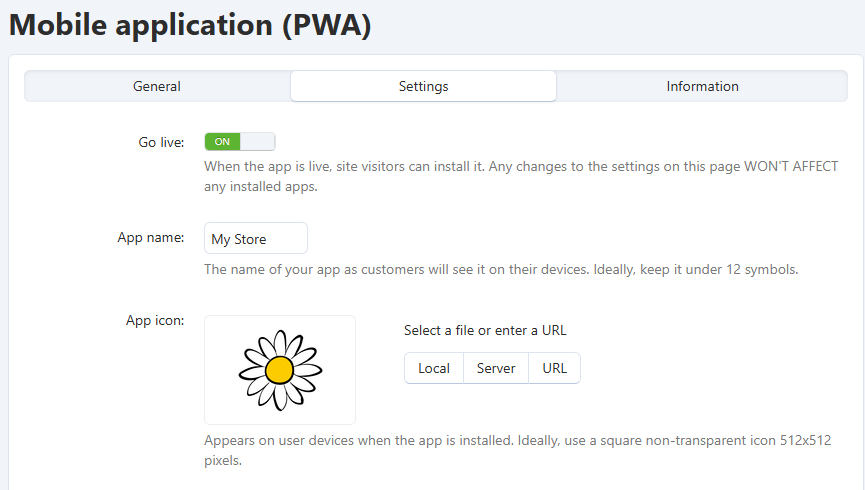
Mind the following recommendations:
Field Recommendation App name Max. 12 characters App icon - Format: PNG
- Dimension: 512x512 pixels
- Non-transparent
As soon as you are ready to launch your PWA, activate the Go live button.
Note the following:
- once your PWA goes live, you will not be able to change the PWA settings for your customers. For example, if you changed the PWA icon, only new customers will see your new icon; the existing customers will need to reinstall the PWA to see the new icon.
- if you deactivate the PWA (by setting the Go live button to the Off position), any PWAs, already installed, will still continue to work, and your action will only prevent new installations of the PWA.
Using PWA on desktop computers and mobile devices
Desktop Computers
Once you have configured and launched your PWA, an install badge or a popup will appear in your browser, which will offer to install the PWA. See the example of a desktop browser:

Press Install to install and use your PWA.
If the browser does not offer to install the PWA, go to the browser settings and install the application manually:
- Google Chrome — Settings button (three dots) → Cast, save and share → Install app.
- Microsoft Edge — Settings button (three dots) → More tools → Apps → Install app.
- Mozilla Firefox — PWA installation is not supported.
Mobile Devices
If the browser does not offer to install the PWA, go to the browser settings and install the application manually:
Safari does not automatically offer to install a progressive web application. To install:
- Open the website in the browser;
- Tap the Share button (a square with an arrow);
- Select the Add to Home Screen button and confirm your action.
In other iOS browsers, a PWA is installed in a similar way.
Google Chrome uses certain algorithms to determine when to display the popup. Primarily, the system needs to determine that the PWA may be useful and interesting for the user. The following recommendations are known:
At least 2 visits to the website on different days (with an interval of at least 1 day). In some cases, 3 or more visits may be required, especially if the time spent on the site was short.
The user should spend at least 30 seconds actively interacting with the site.
The user’s behavior should be active (clicks, navigation, scrolling) so that Google Chrome interprets it as the user’s interest in the website.
If the website was opened for the first time today, the prompt will appear not earlier than in 24 hours.
If the user dismisses the installation popup, Google Chrome remembers this and will not show the popup again for the next 90 days.
If the browser still does not automatically offer to install the PWA:
- Open the website in the browser;
- In the browser settings, select the Add to Home Screen option;
- Select Install and confirm your action.
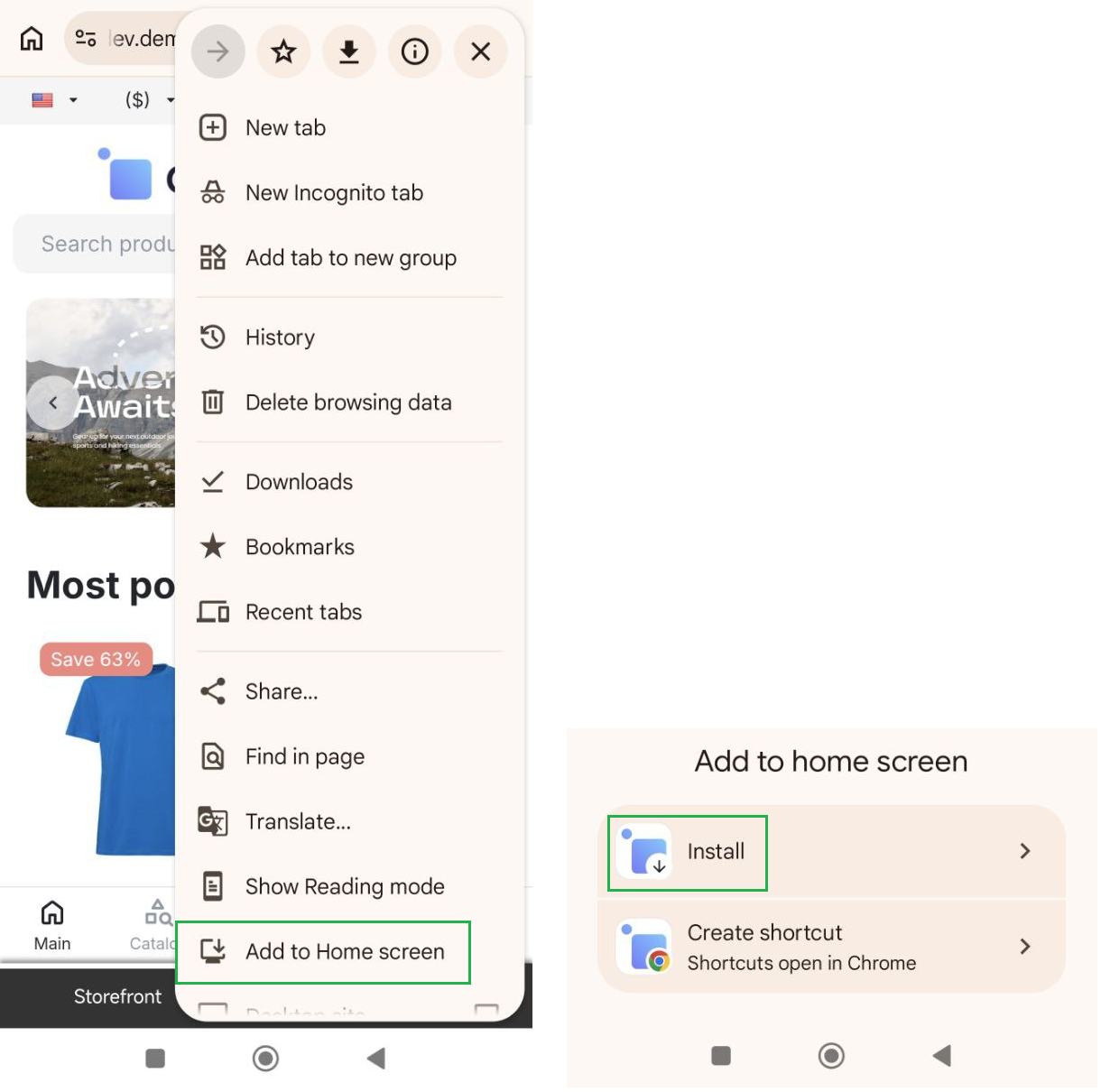
Mozilla Firefox does not support PWA installation.
Configuring PWAs for multiple storefronts
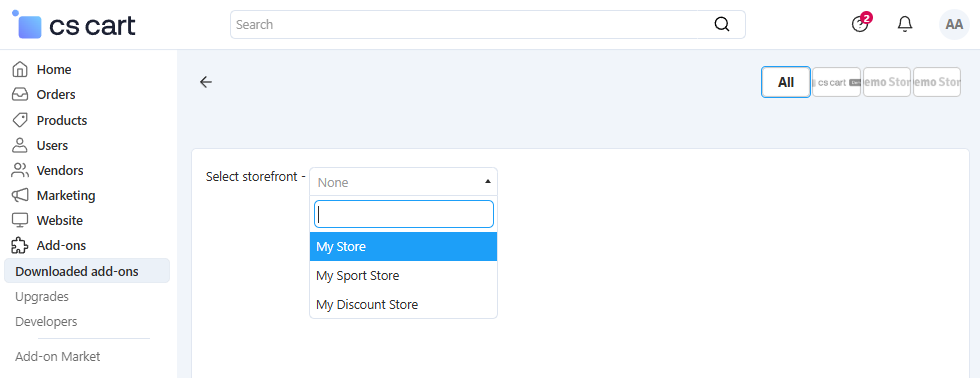
If you use multiple storefronts, you can configure an individual PWA for any of them:
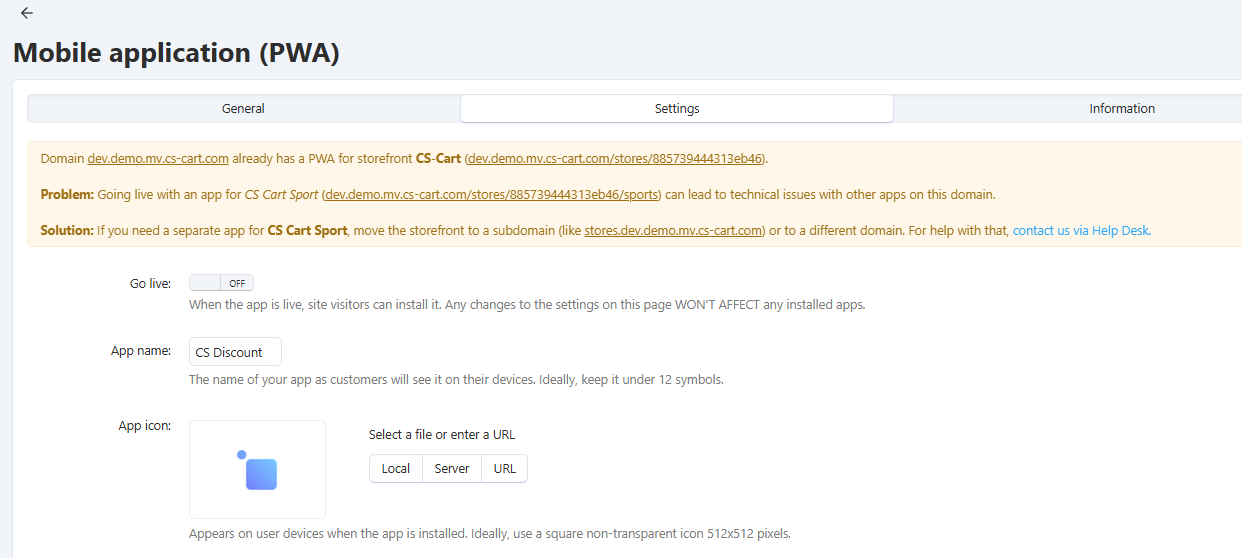
In case you are planning to use a PWA for a storefront, we recommend using a subdomain or a separate domain for it:
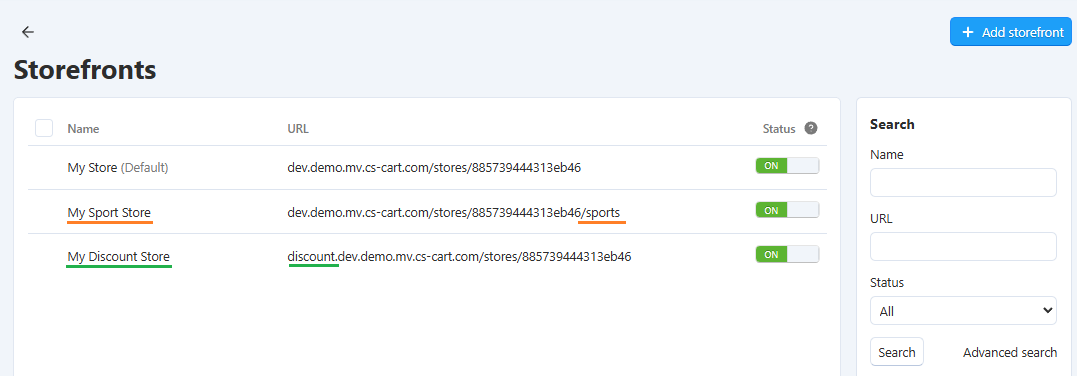
if a storefront is accessed via a subdomain or a different domain, a PWA is created in a normal way;
if a storefront is accessed via a subdirectory, a PWA is still created, but this can cause technical issues since a PWA already exists on the domain.
Questions & Feedback
Have any questions that weren't answered here? Need help with solving a problem in your online store? Want to report a bug in our software? Find out how to contact us.